
Appearance
Keys and commands
Every command Leathercase answers, with its key, where it works and what it does, then the keys each view answers while it is on screen, and how to change any of them. Keys are written for Windows and Linux; on macOS, use Cmd wherever this page says Ctrl, and Option for Alt.
Three ways reach every command:
- its key, when it has one;
- the menu bar (File, Edit, Story, View, Window), built from the same list, so the two never disagree;
- the find field in the title bar (
Ctrl+K): type part of a command's name and pressEnter. The commands you used last come first.
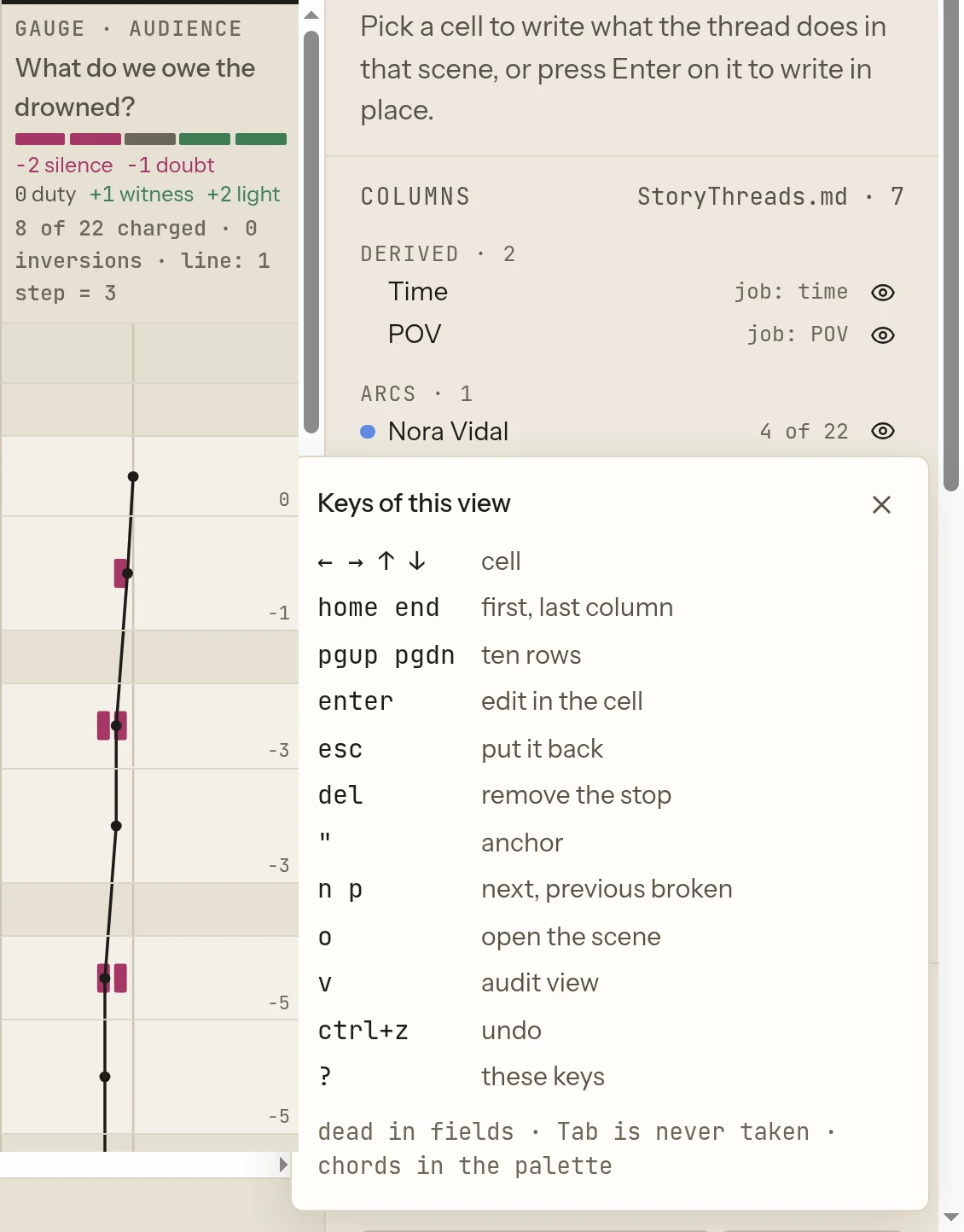
To see the keys of the view you are in, press ? (when you are not typing in a field). A panel titled Keys of this view lists them; ? or Esc closes it.
Where a command works
Each command has a scope. A command outside its scope is not offered in the find field and does nothing when its key is pressed.
| Scope | The command works |
|---|---|
| Always | On every screen, even before a writing home is open |
| With a home open | Once a writing home is open |
| With a story open | While one of the home's stories is open in a view |
A story view's command (Plot grid, Threads and the like) pressed when no story is open opens that view of the story you worked on last.
Commands
Go
| Command | Key | Scope | What it does |
|---|---|---|---|
| Library | Ctrl+1 | With a home open | The home's start page, with its stories |
| Desk | Ctrl+2 | With a home open | The Desk; see The Desk |
| Writer | Ctrl+3 | With a home open | The Writer Board; see The Writer Board |
| Plot grid | Ctrl+4 | With a home open | The story's plot grid; see Plot grid |
| Threads | Ctrl+5 | With a home open | The story's threads; see Threads |
| Graph | Ctrl+6 | With a home open | The story's graph; see Graph |
| Manuscript | Ctrl+7 | With a home open | The manuscript; see Manuscript |
| Tags | Ctrl+8 | With a home open | The home's tags; see Tags |
| Beat board | Ctrl+9 | With a home open | The story's beat board; see Beat board |
| Inbox | Ctrl+0 | With a home open | What agents proposed; see Proposals and the inbox |
| Characters | none | With a home open | The story's characters; see Characters |
| How this story is read | none | With a home open | What Leathercase found in the story's folder and why; see How a story is read |
Story
| Command | Key | Scope | What it does |
|---|---|---|---|
| Declare a story | none | With a home open | Starts declaring a new story in the home; see Declaring a story |
| Story settings | none | With a story open | The open story's settings page; see Story settings |
| Export the manuscript as one file | Ctrl+E | With a story open | Exports the open story at once: the save dialog opens, with the settings already saved for the story. The export settings themselves are in Settings › Export for the story; see Export |
| Open the story in your software | Ctrl+Shift+O | With a story open | Opens the story's files in the app you write in |
| Mark the sentence log | none | With a story open | Opens the find field with mark: typed, to name a mark in the sentence log; see Sentence log |
| Run the mate now | none | With a story open | The mate looks at the open story at once; see The mate |
| Next proposal | Ctrl+] | With a story open | Picks the next proposal and opens the Proposals sheet |
| Previous proposal | Ctrl+[ | With a story open | Picks the previous proposal |
| Accept the proposal | Ctrl+Shift+Enter | With a story open | Accepts the picked proposal, then picks the next |
| Dismiss the proposal | Ctrl+Shift+Backspace | With a story open | Dismisses the picked proposal, then picks the next |
| Next proposal, in a review | Tab · Shift+Tab | Reviewing a changeset, from the page or a proposal | Picks the next or previous proposal of this view; see Reviewing in a view |
| Accept, dismiss, edit, in a review | A · D · E | Reviewing a changeset, not in a field | Accepts, dismisses or opens to edit the picked proposal |
View
| Command | Key | Scope | What it does |
|---|---|---|---|
| Search in this view | Ctrl+F | With a home open | Puts the cursor in the view's own search field; in the Graph it opens the side column to it; where a view has none, it opens the find field |
| Find or make in this view | Ctrl+O | With a home open | Opens the find field in the title bar; see Find, open and make |
| Show or hide the assistant's layer | Ctrl+. | With a home open | Hides or shows what agents and the mate left on the views; remembered |
| Proposals for this story | Ctrl+Shift+. | With a story open | Opens or closes the Proposals sheet in the side column |
| Zoom in | Ctrl+= | Always | Draws the whole window larger, words and controls together, one step up to 300%; remembered |
| Zoom out | Ctrl+- | Always | Draws the whole window smaller, one step down to 50% |
| Actual size | none | Always | Puts the window back at 100%. The zoom is also in Settings › Accessibility |
App
| Command | Key | Scope | What it does |
|---|---|---|---|
| Find a story, a view or a command | Ctrl+K | Always | Opens or closes the find field |
| Add a writing home | none | Always | Picks a folder to open as a writing home; see Homes and stories |
| Settings | Ctrl+, | Always | The Settings page; see Settings |
| Check for updates | none | Always | Opens Settings at Updates and asks which version is newest; see Updates and uninstalling |
| About Leathercase | none | Always | Opens Settings at About: the version, whether a newer one is out, and where every version is |
| Collapse or expand the sidebar | Ctrl+\ | Always | Folds the sidebar to icons, or opens it; remembered |
| Toggle the side column | Ctrl+B | With a home open | Opens or closes the view's side column; closes the Proposals sheet when it is open |
| Show or hide the mate | Ctrl+Shift+M | Always | Opens or closes the mate's panel; remembered |
| Theme: light | none | Always | Light theme |
| Theme: dark | none | Always | Dark theme |
| Theme: follow the desktop | none | Always | Follows the system's light or dark setting |
Keys with Ctrl work everywhere, even while you type in a field. A key with no Ctrl never runs a command while you type in a field, and Tab is never taken: it always moves between controls.
The menu bar
The menu bar holds the same commands, in the app's language. The items the system provides (Undo, Copy, Quit and the like) are worded by the system.
| Menu | Items |
|---|---|
| Leathercase (macOS) | About Leathercase · Services · Hide, Hide Others, Show All · Quit |
| File | Add a writing home, Declare a story · Settings, Check for updates · Quit (Close on macOS) |
| Edit | Undo, Redo · Cut, Copy, Paste, Paste and Match Style, Delete, Select All |
| Story | Story settings · Export the manuscript as one file, Open the story in your software, Mark the sentence log · Run the mate now |
| View | Desk, Inbox, Tags, Graph, Beat board, Plot grid, Threads, Characters, Manuscript, How this story is read · Library, Find a story, a view or a command, Search in this view, Show or hide the assistant's layer, Proposals for this story, Collapse or expand the sidebar, Toggle the side column, Show or hide the mate · Zoom in, Zoom out, Actual size · Theme: light, Theme: dark, Theme: follow the desktop |
| Window | Minimize, Zoom |
| Help (Windows and Linux) | About Leathercase |
On macOS the application menu (About, Hide, Quit) comes first, as for every Mac app. The Edit menu is what gives fields Cmd+C, Cmd+V and Cmd+Z on a Mac.
Keys inside a view
Each view answers some single keys while it is on screen. They are dead while you type in a field, do nothing while a dialog or menu is open, and leave Enter, Space and Delete to a button that has the focus. Press ? in any view to see its list.
Plot grid
| Key | What it does |
|---|---|
← → ↑ ↓ | Move between cells |
Home / End | First or last column of the row |
Page Up / Page Down | Ten rows up or down |
Enter | Edit in the cell |
Esc | Put it back: cancel the anchor pick, then clear the selection |
Delete or Backspace | Remove the stop in the selected cell |
" | Anchor the selected cell on a quoted sentence |
n / p | Next or previous broken anchor, or a gauge flip no quote marks |
o | Open the scene of the selected row |
v | Audit view on or off |
Ctrl+Z / Ctrl+Shift+Z | Undo / redo the last write |
While editing a cell: Enter writes it, Shift+Enter starts a new line, Esc cancels. See Plot grid.
Beat board
| Key | What it does |
|---|---|
← → | Previous or next card |
Enter | Write the selected card |
n | New card in the selected column (or loose) |
Delete or Backspace | Delete the selected card |
Ctrl+Z / Ctrl+Shift+Z | Undo / redo |
Esc | Deselect |
Threads
On the chart:
| Key | What it does |
|---|---|
+ or = / - | Zoom in / out |
f or 0 | Fit the manuscript |
Esc | Clear the selection |
Ctrl+Z / Ctrl+Shift+Z | Undo / redo the last write |
As lanes:
| Key | What it does |
|---|---|
↑ ↓ | Previous or next thread |
Enter | Go to the thread's first stop |
Esc | Clear |
Graph
| Key | What it does |
|---|---|
Tab | Next name |
← → ↑ ↓ | The nearest name that way, or pan when nothing is pinned |
Enter | Pin what is under the pointer |
c | A tie from the pinned name |
p | Paths from the pinned name |
f | Focus on the pinned name and its neighbours, and back |
m | Matrix, and back |
z / Shift+Z | Fold the group / every group |
Delete | Remove the pinned tie |
+ or = / - | Zoom in / out |
0 | Fit everything |
| Drag from a name's ring | Make a tie |
| Double-click | Open the note |
Esc | Let go |
The tie picker: 1 to 5 pick a type, Tab goes to the word, X flips the direction, Enter saves, Esc drops it. The matrix: the arrows move a cell, Enter opens its tie.
Manuscript
| Key | What it does |
|---|---|
| Click | Select a sentence |
↑ ↓ | Previous or next paragraph |
Alt+↑ / Alt+↓ | Previous or next chapter (note) |
Home / End | First or last paragraph |
Enter or Ctrl+Enter | Open the selected passage in its app |
Ctrl+J | Next broken anchor |
l | Next lens |
Esc | Close the review, then clear the selection, then turn the lens off |
In the comments pane, Enter sends a comment and Shift+Enter starts a new line.
Writer Board
| Key | What it does |
|---|---|
Ctrl+O | Find or make a card |
← → (or ↑ ↓) | Previous or next card |
Enter | Edit a card Leathercase made, or open your own note |
n | New card in the selected list |
m | Move the selected card |
f | Fit |
e | Every line on or off |
+ / - | Zoom in / out |
Esc | Deselect |
Tags
| Key | What it does |
|---|---|
↑ ↓ | Previous or next tag |
Enter | Open the tag's first note |
Esc | Deselect |
Pages
On Settings, Story settings and the declaring pages, Esc goes back (on Settings, to the Library; from the uninstall guide, back to Settings).
The find field
While the find field is open:
| Key | What it does |
|---|---|
↑ ↓ | Move through the results |
Enter | Run or open the picked result |
Esc | Close |
word: title | Typing a kind, a colon and a title offers to make it, for example character: Nora |
A command named with a word and a colon, such as Theme: light, still runs when its full name is typed: it comes first, above the Make row.
See Find, open and make and, for questions and meaning search, The mate.
Menus and dialogs
A menu or dialog keeps its keys to itself: Esc closes it, and the view behind it takes no key while it is open. The agents menu in the title bar closes with Esc too.
Keys that work anywhere on this computer
Two keys can work even when another app is in front. They are off by default, so Leathercase takes no key from other apps until you ask.
| Key | Default | What it does |
|---|---|---|
| Capture to Writer | Ctrl+Shift+N | Opens a small window over any app; what you type lands in the Writer's Ideas. In that window, Ctrl+Enter keeps it and Esc closes it |
| Show Leathercase | Ctrl+Shift+S | Brings Leathercase forward from any app |
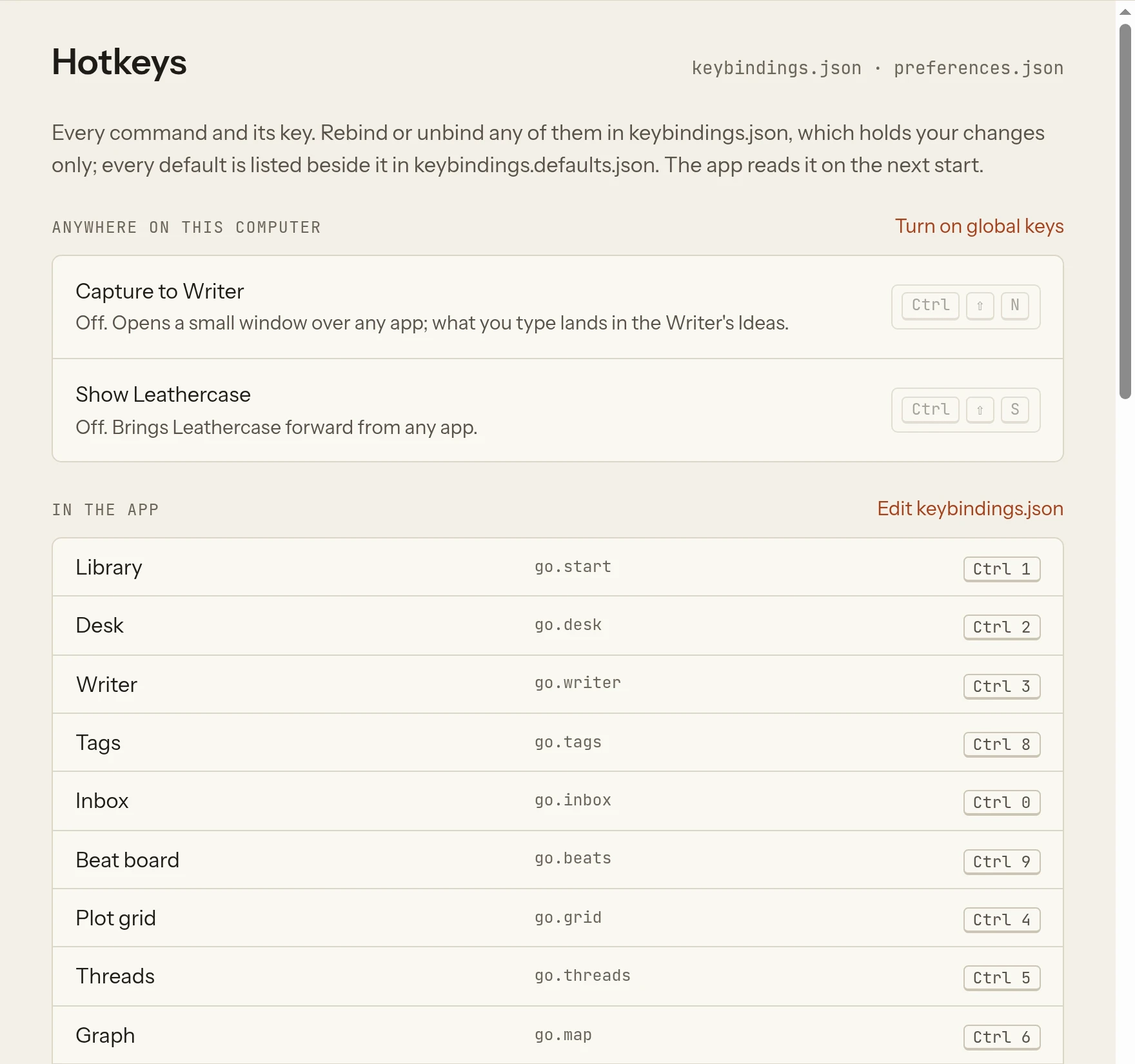
Turn them on in Settings › Hotkeys › Anywhere on this computer with Turn on global keys. To change one, click its key and press the new keys. If another app already holds a key, the row says so in amber, "Another app holds this key, so pressing it does nothing here", and you can pick another; if the system cannot hold it at all, it says "The system cannot hold this key." Turn off global keys gives them back to other apps. These two keys are kept in this computer's preferences.json.
Changing keys
Every command's key can be changed or removed in keybindings.json, a file in the app's data. Open it from Settings › Hotkeys with Edit keybindings.json; it opens in your text editor.
- The file holds your changes only, and starts empty:
{ }. A key the app changes in a later version reaches you unless you overrode it. - Beside it,
keybindings.defaults.jsonlists every command's id and default key, rewritten each time; copy a line from it. - Write one line per command: the command's id (shown in grey in Settings › Hotkeys), then its key. Write
ModforCtrl(it becomesCmdon macOS), andnullto remove a key. - Leathercase reads the file the next time it starts.
For example, to give Characters a key and take Export off Ctrl+E:
json
{
  "go.characters": "Mod+Shift+C",
  "story.export": null
}
Settings › Hotkeys lists every command with its id and its key as it stands, so you can check the result.
Command ids
The ids, for keybindings.json:
| Id | Command | Default |
|---|---|---|
go.start | Library | Mod+1 |
go.desk | Desk | Mod+2 |
go.writer | Writer | Mod+3 |
go.grid | Plot grid | Mod+4 |
go.threads | Threads | Mod+5 |
go.map | Graph | Mod+6 |
go.manuscript | Manuscript | Mod+7 |
go.tags | Tags | Mod+8 |
go.beats | Beat board | Mod+9 |
go.inbox | Inbox | Mod+0 |
go.characters | Characters | none |
go.files | How this story is read | none |
story.declare | Declare a story | none |
story.settings | Story settings | none |
story.export | Export the manuscript as one file | Mod+E |
story.open | Open the story in your software | Mod+Shift+O |
story.markLog | Mark the sentence log | none |
mate.run | Run the mate now | none |
view.search | Search in this view | Mod+F |
view.open | Find or make in this view | Mod+O |
view.layer | Show or hide the assistant's layer | Mod+. |
view.proposals | Proposals for this story | Mod+Shift+. |
view.zoomIn | Zoom in | Mod+= |
view.zoomOut | Zoom out | Mod+- |
view.zoomReset | Actual size | none |
proposal.next | Next proposal | Mod+] |
proposal.previous | Previous proposal | Mod+[ |
proposal.accept | Accept the proposal | Mod+Shift+Enter |
proposal.dismiss | Dismiss the proposal | Mod+Shift+Backspace |
app.palette | Find a story, a view or a command | Mod+K |
app.openLibrary | Add a writing home | none |
app.preferences | Settings | Mod+, |
app.checkForUpdate | Check for updates | none |
app.about | About Leathercase | none |
app.sidebar | Collapse or expand the sidebar | Mod+\ |
app.sideColumn | Toggle the side column | Mod+B |
app.mate | Show or hide the mate | Mod+Shift+M |
app.theme.light | Theme: light | none |
app.theme.dark | Theme: dark | none |
app.theme.system | Theme: follow the desktop | none |
The view keys (arrows, n, f and the like) and the two global keys are not in this file.