
Appearance
Updates and uninstalling
Leathercase does not update itself behind your back. It asks whether a newer version exists only when you say so, downloads it only when you take it, and installs it when you restart. This page covers how that works on each system, where to read what changed, and how to uninstall the app, including what stays behind.
Checking for a newer version
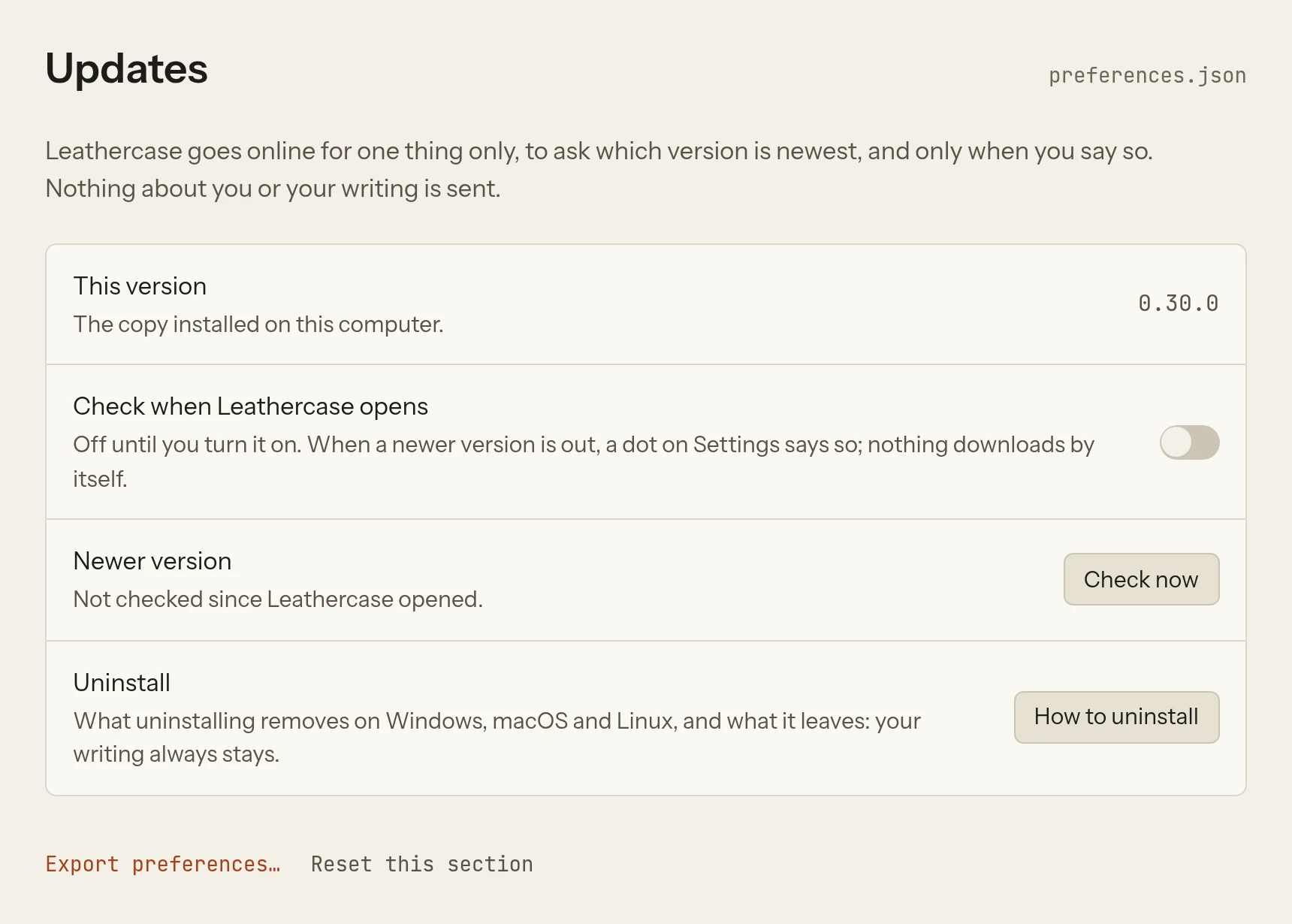
Nothing goes online until you ask. A fresh install has never checked, and Check when Leathercase opens is off.
You can check in four ways:
- Settings, Updates, Check now. Open Settings with
Ctrl+,(Cmd+,on macOS) or from Settings at the foot of the sidebar. - Settings, About, Check now. About Leathercase shows this copy's version with the same row as Updates; open it from the Leathercase menu on macOS, from Help on Windows and Linux, or with About Leathercase in the find field.
- The File menu, Check for updates.
- The find field: press
Ctrl+K(Cmd+K), type "Check for updates" and pressEnter.
Or let Leathercase check each time it opens: turn on Check when Leathercase opens in Settings, Updates. The hint says what that does: Off until you turn it on. When a newer version is out, a dot on Settings says so; nothing downloads by itself. The choice is this computer's, kept in its preferences.
When a check finds a newer version, a dot appears on Settings in the sidebar and on Updates in the Settings list, both saying Version 0.25.0 is out (with the real number).
The Updates page
The page opens with one line: Leathercase goes online for one thing only, to ask which version is newest, and only when you say so. Nothing about you or your writing is sent. Then four rows.
| Row | What it shows |
|---|---|
| This version | The version installed on this computer |
| Check when Leathercase opens | The switch described above |
| Newer version | What the last check found, and the one thing you can do next |
| Uninstall | How to uninstall opens the uninstall guide inside the app; Back to Settings returns |
The Newer version row moves through these states:
| The row says | The button | What happens |
|---|---|---|
| Not checked since Leathercase opened. | Check now | Asks the releases which version is newest |
| Asking the releases… | none | The check is running |
| This is the newest version. Checked at 14:05 UTC. | Check again | Nothing to do |
| Version 0.25.0 is out. It downloads now and installs when you restart. | Download | Downloads the new version in the background |
| Version 0.25.0 is out. This copy cannot replace itself, so its download page opens. | Open download page | Opens the version's page in your browser, where you download the installer |
| Downloading version 0.25.0… | none | The download is running |
| Version 0.25.0 is downloaded. It installs when you restart, or the next time you quit. | Restart now | Quits, installs and opens the new version |
| Leathercase could not reach its releases. Check the connection and try again. | Try again | The check or the download failed; nothing changed |
| This copy of Leathercase cannot check for updates. Newer versions are on the download page. | Try again | This kind of install has no update feed |
| A build run from source does not check. | none | Only for a copy built by hand from the source |
A downloaded update waits. Keep working; it installs when you choose Restart now, or by itself the next time you quit Leathercase. Either way Leathercase first finishes what it was writing (the sentence log, the mate's state, your preferences), waiting at most two seconds, and then quits.
On each system
| System and package | What Download does |
|---|---|
Windows (the .exe installer) | Downloads the new version and installs it on restart, from a version before 0.30 too |
macOS (the .dmg) | Downloads the new version and replaces the app on restart. Every release is signed with the same Apple Developer ID and notarised by Apple, which is what lets the app replace itself. Once only, going from a version before 0.30 to 0.30 or later needs a download by hand: the app's identity changed with its name, so the old app cannot replace itself with the new one. Your homes and settings carry over |
| Linux, AppImage | Downloads the new AppImage and replaces the old one on restart |
Linux, .deb | The app cannot replace a package your system installed, so Open download page opens the release instead. Download the new .deb and install it as you installed the first, from your software centre or with sudo apt install ./leathercase-…amd64.deb |
The updater's downloads are kept in a cache folder of their own (see Uninstalling) and do not touch your writing home.
Installing a new version by hand
Every release is on the releases page. Download the file for your system and install it over the old version; your homes, preferences and stories stay as they were, since none of them live inside the app.
| System | File |
|---|---|
| Windows (x64 and Arm) | leathercase-<version>-win.exe |
| macOS, Apple silicon | leathercase-<version>-mac-arm64.dmg |
| macOS, Intel | leathercase-<version>-mac-x64.dmg |
| Linux, x86_64 | leathercase-<version>-linux-x86_64.AppImage or leathercase-<version>-linux-amd64.deb |
| Linux, Arm | leathercase-<version>-linux-arm64.AppImage or leathercase-<version>-linux-arm64.deb |
Each release also lists a SHA256SUMS file per system, so you can check that the file you downloaded is the one published.
Windows asks before the installer runs
The Windows installer is not yet signed, so Windows SmartScreen may say it "protected your PC". Choose More info, then Run anyway. The macOS app is signed and notarised and opens without a warning on macOS 12 or later.
What changed in a version
Each release on the releases page carries its notes: what changed in that version, followed by a table of which file to download. The app does not show release notes itself; Every version and its notes, on Settings, About, opens the releases page in your browser, as does Open download page.
Uninstalling
Uninstalling removes the app. It never touches your writing: your notes stay where they are, and so do the files Leathercase kept beside them, so you can read them without the app or open them again after a reinstall. The same guide is in the app: Settings, Updates, How to uninstall.
Before you uninstall: Leathercase's files in your homes
Leathercase keeps its own files in each writing home: Suite.md and suite/ at its root, Writer/ for your cards, and a suite/ folder inside each story's folder (see Files Leathercase writes). Uninstalling leaves them, on purpose: they are yours, and they hold your grid, threads, cards and comments.
To remove them too, do it while the app is still installed: in Settings, Storage, choose Remove… beside each home, then Purge. Purge moves Leathercase's files to the trash and leaves your notes alone. Or delete those folders yourself at any time.
If you connected an agent, remove the Leathercase bridge from that agent's app as well: in Claude Desktop, under Settings, Extensions; for the others, the line you added to their settings (see Connect an agent).
Windows
- Quit Leathercase.
- Open Settings, Apps, Installed apps. Find Leathercase, open its menu, and choose Uninstall. On older Windows, open Control Panel, Programs and Features.
- The uninstaller asks whether to remove this computer's settings as well. Answer Yes to remove them; answer No to keep them for a later reinstall.
This computer's settings are the list of your homes, your preferences, connected agents and the downloaded search model. They live in %APPDATA%\Leathercase. The uninstaller also removes the leathercase:// link and the updater's downloads in %LOCALAPPDATA%\@leathercasedesktop-updater.
When Leathercase was installed for all users and Windows asked another account, an administrator, to approve the uninstall, the uninstaller works in that administrator's account. Its question then removes that account's settings, not yours, and your link stays registered. To remove your settings, sign in to your own account and delete %APPDATA%\Leathercase yourself.
To uninstall without questions, as an administrator would, run the uninstaller with /S; add --delete-app-data to remove this computer's settings too. This is where it is when Leathercase was installed for you alone in the default place; otherwise it is in the folder you chose:
"%LOCALAPPDATA%\Programs\leathercase\Uninstall leathercase.exe" /S --delete-app-dataA Leathercase updated from a version before 0.30 stays in the folder it was first installed in, %LOCALAPPDATA%\Programs\creative-suite, and its uninstaller is there.
macOS
macOS apps have no uninstaller.
- Quit Leathercase.
- In Finder, open Applications and drag Leathercase to the Trash. Empty the Trash.
The app's settings stay behind in your Library folder. To remove them too, in Finder choose Go, Go to Folder, and delete each of these that exists:
~/Library/Application Support/Leathercase
~/Library/Caches/@leathercasedesktop-updater
~/Library/Caches/app.leathercase.desktop
~/Library/Caches/app.leathercase.desktop.ShipIt
~/Library/HTTPStorages/app.leathercase.desktop
~/Library/Preferences/app.leathercase.desktop.plist
~/Library/Saved Application State/app.leathercase.desktop.savedState
Or in Terminal:
rm -rf ~/Library/Application\ Support/Leathercase ~/Library/Caches/@leathercasedesktop-updater ~/Library/Caches/app.leathercase.desktop* ~/Library/HTTPStorages/app.leathercase.desktop ~/Library/Preferences/app.leathercase.desktop.plist ~/Library/Saved\ Application\ State/app.leathercase.desktop.savedStateLinux
How you remove the app depends on how you installed it.
If you installed the .deb package (Debian, Ubuntu, Mint, Pop!_OS), remove it from your software centre, or from a terminal:
sudo apt remove leathercaseIf you run the AppImage, it was never installed: delete the .AppImage file. If a tool such as Gear Lever or AppImageLauncher added it to your menu, remove it there as well.
The AppImage adds two files the first time it runs, so leathercase:// links reach it: a menu entry and its icon. Delete them with the AppImage:
rm -f ~/.local/share/applications/leathercase.desktop ~/.local/share/icons/hicolor/512x512/apps/leathercase.pngEither way, the app's settings stay behind. To remove them too:
rm -rf ~/.config/Leathercase ~/.cache/@leathercasedesktop-updaterWhat versions before 0.30 left behind
Before 0.30 the app had another name, and it kept its settings in other folders. Leathercase moves the settings to its own folder the first time it opens, so what is left in the old places can go. On Windows and Linux, 0.30 arrived as an ordinary update; on macOS it had to be downloaded once by hand, because the app's identity changed with its name, so the old app may still be in Applications.
On Windows, delete %APPDATA%\@creative-suite and %LOCALAPPDATA%\@creative-suitedesktop-updater if they are still there.
On macOS, in Terminal:
rm -rf ~/Library/Application\ Support/@creative-suite ~/Library/Caches/@creative-suitedesktop-updater ~/Library/Caches/com.creativesuite.desktop* ~/Library/HTTPStorages/com.creativesuite.desktop ~/Library/Preferences/com.creativesuite.desktop.plist ~/Library/Saved\ Application\ State/com.creativesuite.desktop.savedStateOn Linux, the .deb of 0.30 replaces the old package. The old AppImage's menu entry and its settings can go:
rm -f ~/.local/share/applications/creative-suite.desktop ~/.local/share/icons/hicolor/512x512/apps/creative-suite.png
rm -rf ~/.config/@creative-suite ~/.cache/@creative-suitedesktop-updater
What stays behind
| What | Where | Removed by uninstalling |
|---|---|---|
| Your manuscripts and notes | Your writing homes | Never |
Leathercase's files for your stories: Suite.md, suite/, Writer/ | Your writing homes | Never; Purge them first, or delete them by hand |
| This computer's settings: homes list, preferences, keys, agents, the meaning search model, the sample copy | The app's data folder | On Windows if you answer Yes; on macOS and Linux delete it by hand |
| Downloaded updates | The updater's cache folder | On Windows; on macOS and Linux delete it by hand |
The leathercase:// link | Windows registry; macOS app; Linux menu entry | With the app; for the AppImage, delete the menu entry by hand |
| The bridge in an agent's app | Claude Desktop, Codex, Cursor and the others | Never; remove it in that app |
| Files you exported | Wherever you saved them | Never |
Reinstalling later picks up whatever you kept: a writing home whose suite/ folders are still there opens with its stories, grid and cards as you left them, on this computer or any other.