
Appearance
Settings
The Settings page holds the app's preferences, the open home's storage and author details, the mate, search, agents, keys and updates, and a door to each story's own settings. This page lists every section and every field in the order the page shows them, with its default and where it is kept: on this computer only, or in your writing home, where it travels with your stories.
Opening Settings
- Settings at the foot of the sidebar;
Ctrl+,(Cmd+,on macOS);- Settings in the File menu, or in the find field.
Back to Library at the foot of the section list, or Esc, goes back.
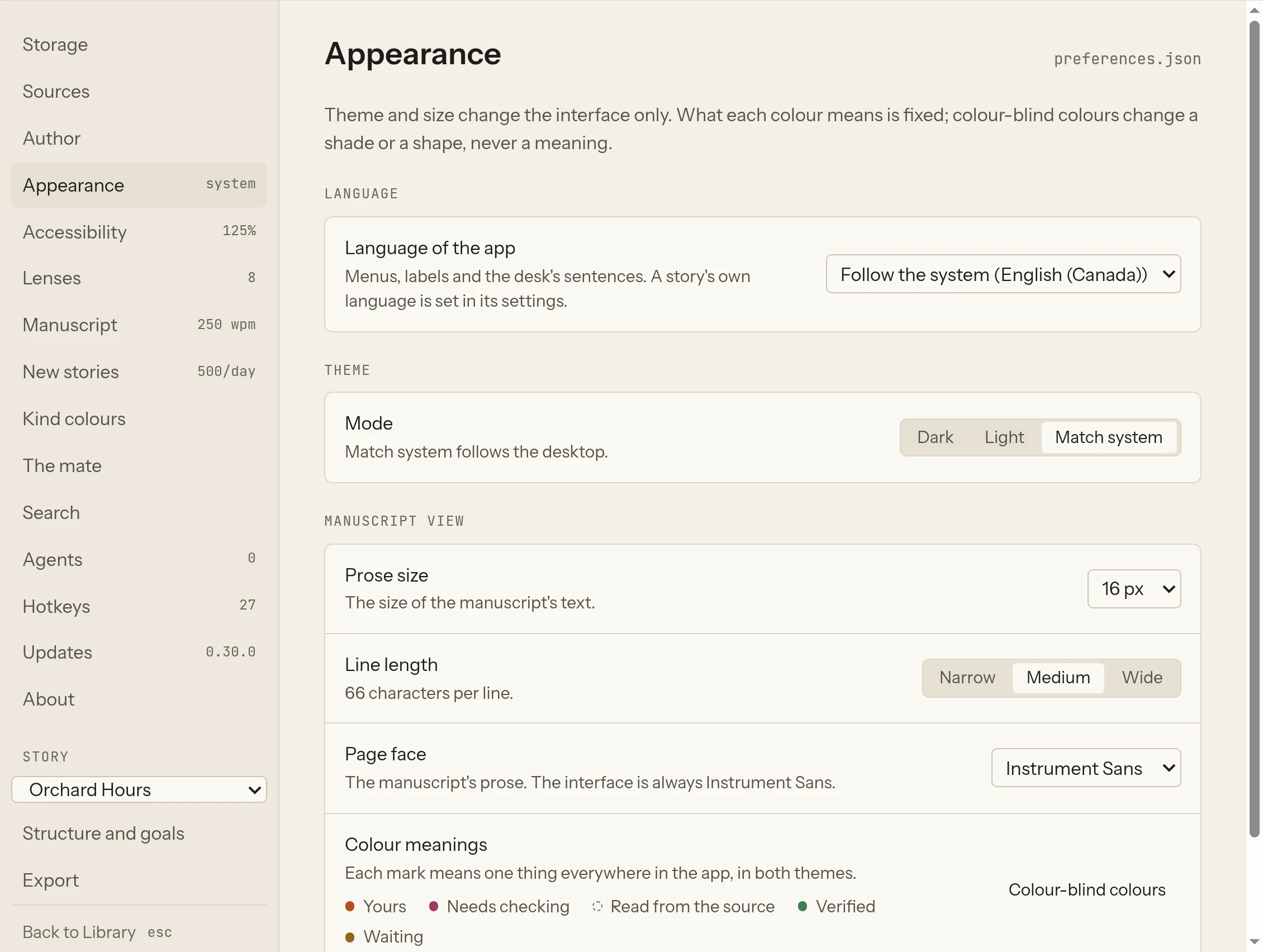
How the page is laid out
On the left, the sections. The first heading is the open home ("Home · Sample"), or App when no home is open. A section may show a short summary at the right of its name ("dark", "100%" for the zoom, the number of style checks on, "250 wpm", "500/day", the number of keys, the agents connected, the version, the number of conflicted copies), and a dot when something needs you: conflicted copies in Storage, a newer version in Updates, refusals you have not seen in Agents.
Under Story, a menu picks one of the home's stories, followed by its two sections, Structure and goals and Export.
On the right, the section you picked. Its title sits at the top with, at the far right, the file that section writes, such as preferences.json or suite/Author.json. Changes apply as you make them; there is no Save button.
At the foot of most sections:
- Export preferences… saves a copy of your preferences as a file you choose (
leathercase-preferences.jsonby default). - Reset this section puts the section back to its defaults. It is offered in Appearance, Accessibility, Lenses, Manuscript, New stories, Kind colours, Hotkeys (the global keys only) and Updates.
With no home open, Storage, Sources and Author are not shown.
Where preferences are kept
Some settings belong to this computer, some to the writing home.
| Kept | What | Where |
|---|---|---|
| This computer only | The app's language, theme, appearance, accessibility (zoom, contrast, colour-blind colours, reduced motion), lenses, manuscript layout, the daily goal for new stories, kind colours, the mate's settings, the global keys, update checks, whether the sidebar, the mate's panel and the assistant's layer were open, where you left each story | preferences.json in the app's data |
| This computer only | Your changes to keys | keybindings.json in the app's data |
| This computer only | Connected agents, their tokens and grants | agents.json and agents/ in the app's data |
| This computer only | What the mate told and what you saw; the meaning model | mate/ and models/ in the app's data |
| The writing home | The home's name, and its tile's colour and icon | suite/Library.json at the home's root |
| The writing home | The author's name, contact and pen names | suite/Author.json at the home's root |
| The writing home | Each story's settings, export settings and the app it opens in | suite/Story.json and suite/Export.json in the story's folder |
| The writing home | How each story's plot grid, threads chart, beat board and graph tabs are laid out | GridLayout.json, Threads.json, BeatBoard.json and Graph/ in the story's suite/ folder, so they travel with the story |
The app's data is a folder the system gives Leathercase:
| System | The app's data |
|---|---|
| Linux | ~/.config/Leathercase/data |
| macOS | ~/Library/Application Support/Leathercase/data |
| Windows | %APPDATA%\Leathercase\data |
What is in the writing home syncs with it, if a sync tool carries the folder, and is readable without Leathercase. What is in the app's data stays on this computer; a second computer has its own. See Files Leathercase writes.
Storage
The open home: where it lives and who carries it. "Leathercase reads the folder and never uploads anything itself." Writes preferences.json.
This home comes first: the home's Name, as the switcher shows it, saved on Enter or when you leave the field; its tile's Color, one of nine or the accent; and its Icon, one of 24 or the name's first letter. They are kept in the home's suite/Library.json and sync with it. Right after you add a folder whose name another home has, a line here says what it was named and why.
| Row | What it shows or does |
|---|---|
| Writing home | The home's folder, and Show folder, which opens it in your file manager |
| Sync | Whether a sync tool carries the folder: "local" ("No sync tool holds this folder; it lives on this computer only.") or "detected" with the tool's name ("Dropbox carries this folder. Leathercase never uploads anything itself.") |
| Daily snapshots | A copy of every suite/ folder, kept in suite/daily for 14 days; manuscripts are never copied. Shows how many days are kept and their size, the latest day, and Show, which opens the folder |
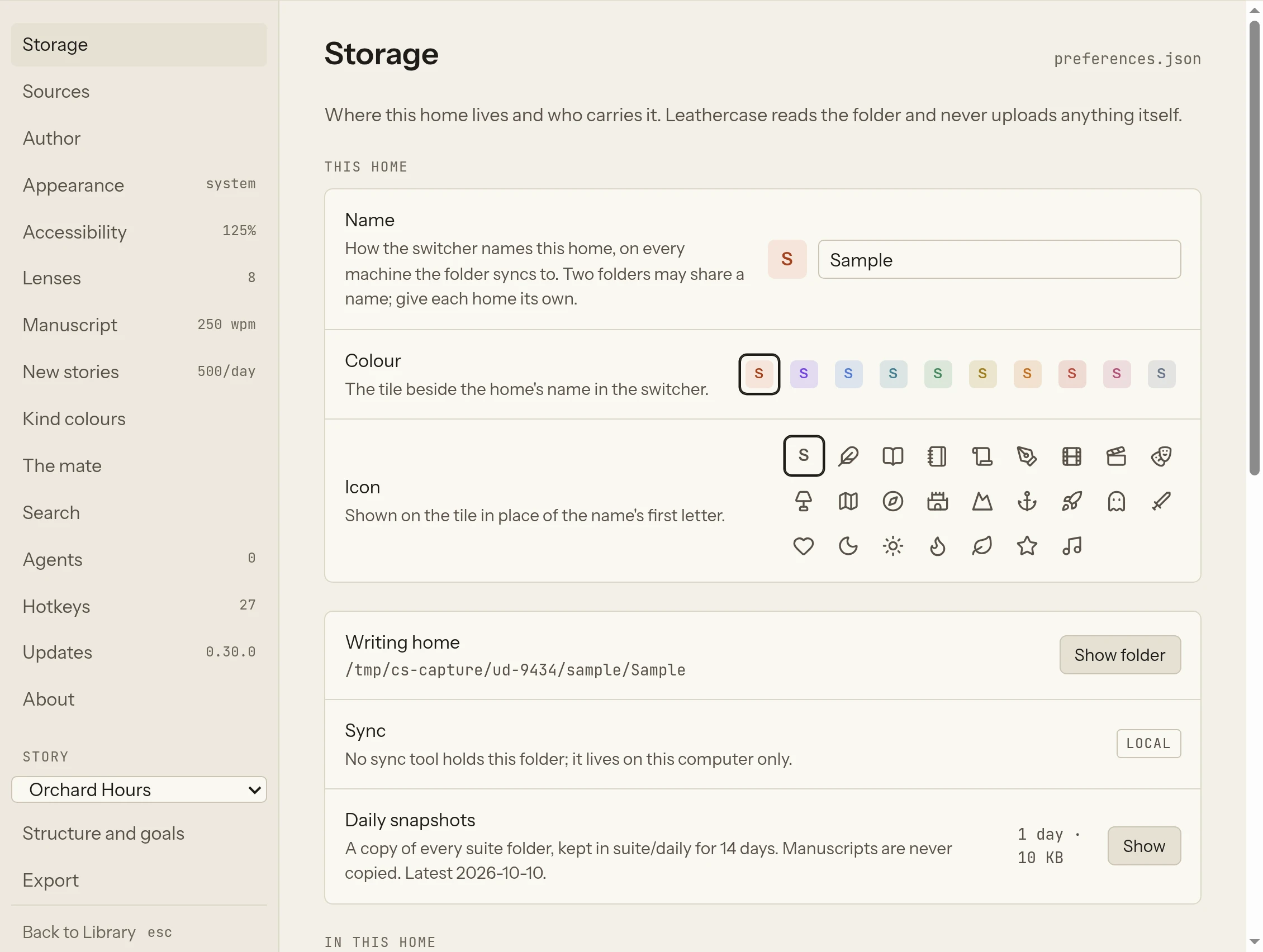
In this home lists what Leathercase keeps in the home's folder:
| Entry | What it is |
|---|---|
Suite.md | Marks this folder as a writing home and lists its stories. Leathercase rewrites only that list; the rest of the note is yours |
suite/ | The home's own structured files: its manifest, the author and pen names, the Writer board's layout, and the daily snapshots |
Writer/ | Your cards, one markdown note each, shared by every story in this home. If you chose another author data folder for the cards, its name comes first |
4 × suite/ | One inside each story's folder: its settings, export, layouts and snapshots as JSON, its Graph as markdown; its plot grid in PlotGrid.md, its threads, comments and beat cards as markdown; its writing and sentence logs as JSON Lines in logs/ |
Other homes lists the other writing homes on this computer, each with its folder, Switch and Remove…. With none: "No other home. A second home, for a pen name or another set of stories, adds a switcher to the navigation." Add a writing home… opens a folder.
Remove this home
Two ways to take a home off this computer. Both open a dialog with a Delete and Purge switch at its top, so you can change your mind there.
| Choice | What it does | What stays |
|---|---|---|
| Delete writing home (Delete…) | Takes the home off this computer's list, with what this computer kept of it: the passage to resume, the capture target, the agents' access | Everything in the folder. Open the folder again to take the home up where you left it |
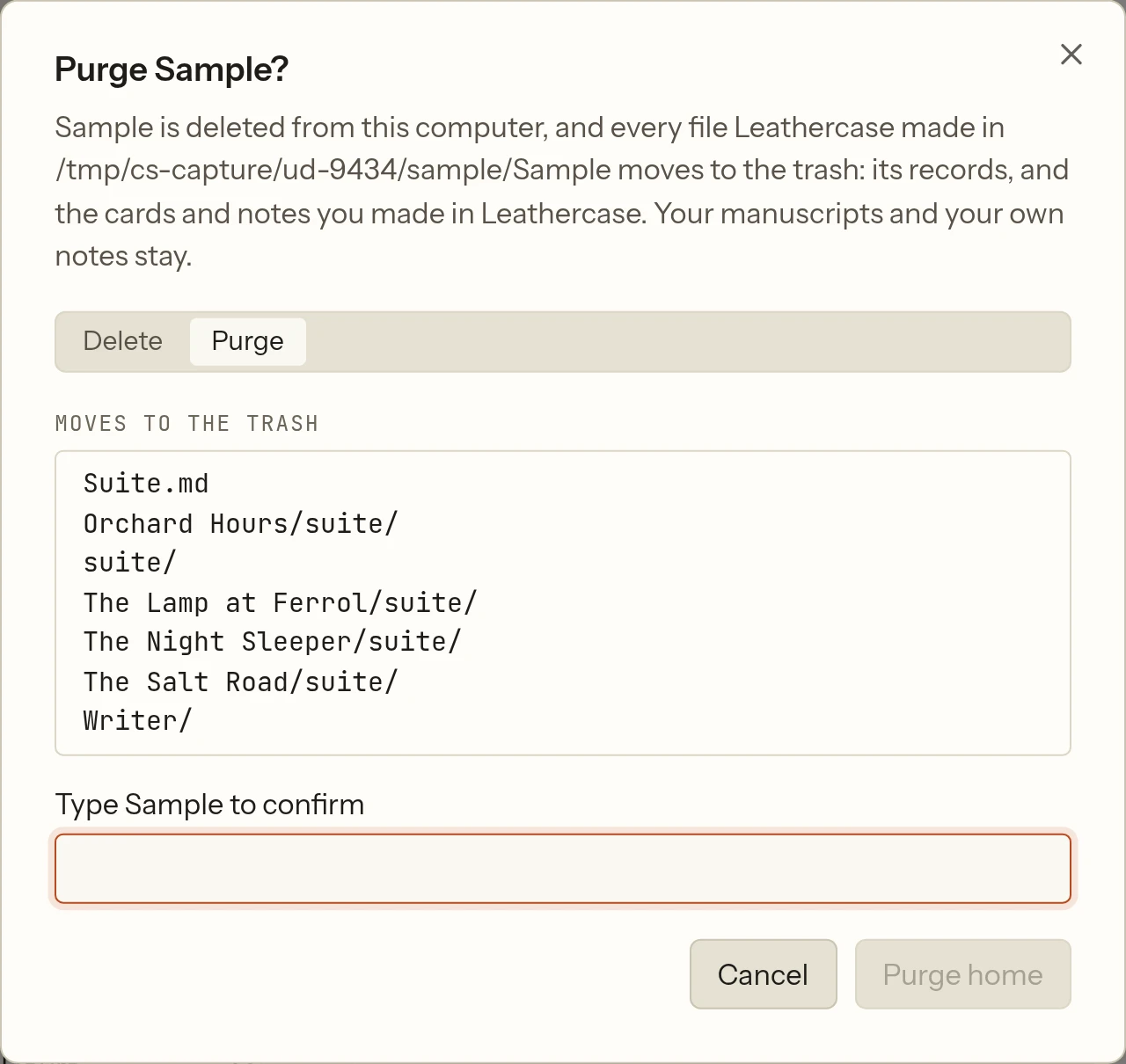
| Purge writing home (Purge…) | Deletes the home from this computer and moves every file Leathercase made in the folder to the system's trash: its records, and the cards and notes you made in Leathercase | Your manuscripts and your own notes |
For Purge, the dialog lists what Moves to the trash and what is Left where they are (folders you chose for a story's notes, which may hold your own notes too, so Leathercase leaves them). If a sync tool carries the folder, it warns that these files will leave every device that syncs it. You must type the home's name to confirm before Purge home is enabled. Delete home needs no typing.
Conflicted copies
When a sync tool keeps two versions of one of Leathercase's files, Storage lists them under Conflicts · N, and a dot appears on Storage. Each row names the story, or Home or Writer, and the file, with where the copy came from, when each side changed, and how far apart they are ("3 values differ", "1 line differs", "the same", "the original is gone").
- Compare opens both sides in a table, by value for structured files and by line for markdown: This computer and The copy. When they are the same it says "The two are the same; keep either."
- Keep the copy replaces this computer's version with the copy.
- Keep this computer's keeps yours and lets the copy go.
"The side you let go of goes to the system's trash, so nothing is lost. Leathercase only reads its own files here; your manuscripts are the sync tool's to reconcile." With none: "No conflicted copies. When a sync tool keeps two versions of one of Leathercase's files, both appear here."
Sources
What each story is read from, and the app its passages open in. "Every source is read-only: edits happen in the source." Read from the files.
One row per story, with its number of files ("12 files · read-only"), a badge for the source format, and a menu Open … in:
| The menu shows | Meaning |
|---|---|
| "Scrivener · inferred" (dashed) | Leathercase guessed the app, with its reason |
| "… · for the format" | The app you chose for every story of this format |
| Choose… (amber) | Leathercase could not tell; pick one |
| An app's name (solid) | Your choice, kept with the story |
| Your default app | The system's default |
The app for every story of one format is set from the manuscript's first Open in. A story not read yet says "not read yet". With no story: "No stories yet. Declare one from the Library."
Author
Contact details for title pages and cover letters. "Contact details stay in the home and only appear in exports." Writes suite/Author.json in the home.
For title pages and cover letters: Legal name (top left of the title page), Address (one line per line), Email, Phone. Add agent… adds a literary agent's block, Agent's name, Agency, Agency address, Agent's email, Agent's phone, which replaces your contact block on the title page once it has a name; remove takes it off.
Pen names: each pen name with the stories that use it, a surname field for running headers (the last word by default), default or make default, and Remove. Add pen name adds one. With none, stories are published under your legal name. Each story picks its pen name in its Export section. See Export.
Appearance
"Theme and size change the interface only. What each color means is fixed; color-blind colors change a shade or a shape, never a meaning." This computer only.
Language
| Field | Default | What it does |
|---|---|---|
| Language of the app | Follow the system (with the language it resolves to) | Menus, labels and the desk's sentences. Choices: English (United States), English (United Kingdom), English (Canada), Português (Brasil), Português (Portugal) |
Leathercase keeps three languages apart, because a writer's machine, story and book often differ:
| Language | What it decides | Where it is set |
|---|---|---|
| The app's | Menus, labels, the desk's sentences, dates and numbers | Here, on this computer |
| The story's | Which rules read the prose: the tagger, the style checks, the pronouns | The story's settings, kept with the story; told from the prose when not set |
| The book's | The words an export writes into the manuscript: "Contents", "Chapter One", the title page | Follows the story's language |
A writer can run the app in Portuguese on a story written in English. See Languages.
Theme
| Field | Default | What it does |
|---|---|---|
| Mode | Match system | Dark, Light or Match system, which follows the desktop. Also the commands Theme: light, Theme: dark, Theme: follow the desktop |
Manuscript view
| Field | Default | What it does |
|---|---|---|
| Prose size | 16 px | The size of the manuscript's text, 14 to 20 px |
| Line length | Medium | Narrow (58), Medium (66) or Wide (76) characters per line |
| Page face | Instrument Sans | The manuscript's prose: Instrument Sans, Literata, Georgia, or Your system serif. The interface is always Instrument Sans |
| Color meanings | fixed | A key that draws each mark beside its meaning: Yours (vermilion), Needs checking (rose), Read from the source (dashed), Verified (green), Waiting (amber). The same in both themes. Color-blind colors beside it opens Accessibility |
Accessibility
"How large the app is drawn, how much contrast it has, which colors mark the meanings and whether things move." This computer only.
Size
| Field | Default | What it does |
|---|---|---|
| Zoom | 100% | The whole window, words and controls together, from 50% to 300%. Also Zoom in (Ctrl+=), Zoom out (Ctrl+-) and Actual size in the View menu |
| Prose size | 16 px | The manuscript's text, on top of the zoom. The same setting as under Appearance |
Seeing and motion
| Field | Default | What it does |
|---|---|---|
| Stronger contrast | Off | Darker secondary text and borders, in both themes |
| Color-blind colors | Off | Verified turns blue instead of green; needs checking becomes a diamond and waiting a triangle, so neither rests on its color alone. Made for red-green and blue-yellow color blindness. Every meaning stays the same |
| Reduce motion | Off | No fades |
Reset this section puts these four back and leaves the prose size alone.
Lenses
"One lens at a time on the manuscript page." This computer only. See Lenses and style checks.
| Field | Default | What it does |
|---|---|---|
| Rhythm tiers | 6 | How many bands of sentence length, cool to warm, 4 to 6 |
| Style checks | All on | Which kinds the style lens tints: adverb, passive, filter, cliché, repetition, metaphor, nominalization, weak verb. Off is off everywhere |
| Echo sensitivity | Medium | Low, Medium or High: how close two passages must be before the echo lens marks them |
Manuscript
"How the notes become one book. The files are read as they are; only the page changes." This computer only. See Manuscript.
| Field | Default | What it does |
|---|---|---|
| Folder levels as headings | 2 | How many folder levels become headings above the notes; 0 for none |
| Note names as headings | On | A note's name becomes a heading above its text |
| Strip from names | Numbers and separators | Sort prefixes such as 01 - are dropped from folder and note names; or Nothing |
| Reading speed | 250 | Words a minute, for the reading time on the page, 100 to 600 |
New stories
"What a new story starts with. Each story keeps its own target, deadline and daily goal in its settings." This computer only.
| Field | Default | What it does |
|---|---|---|
| Daily goal for a new story | 500 | Words a day, 0 to 5,000; 0 means no goal, and any day with new words counts |
Kind colours
"The colour each kind of name wears across the app: in the Tags view, the Characters view and every list of names. The Graph tells kinds apart by shape, so its colour stays with what you made." This computer only.
Kinds and colors: a colour for each kind: Characters, Places, Items, Factions, Events, References, Chapters, Names without a note. Click the swatch to pick a colour ("#3a7bd5 · yours"); theme's returns it to the theme's colour. A story's own kinds take the story's colours.
The mate
The mate's settings. "The mate is Leathercase's own assistant. It reads your stories with Leathercase's rules, on this computer, and wakes no model." This computer only (preferences.json, and what it told in mate/). See The mate.
| Field | Default | What it does |
|---|---|---|
| Heartbeat | On | Looks after a save, every half hour, and when you ask |
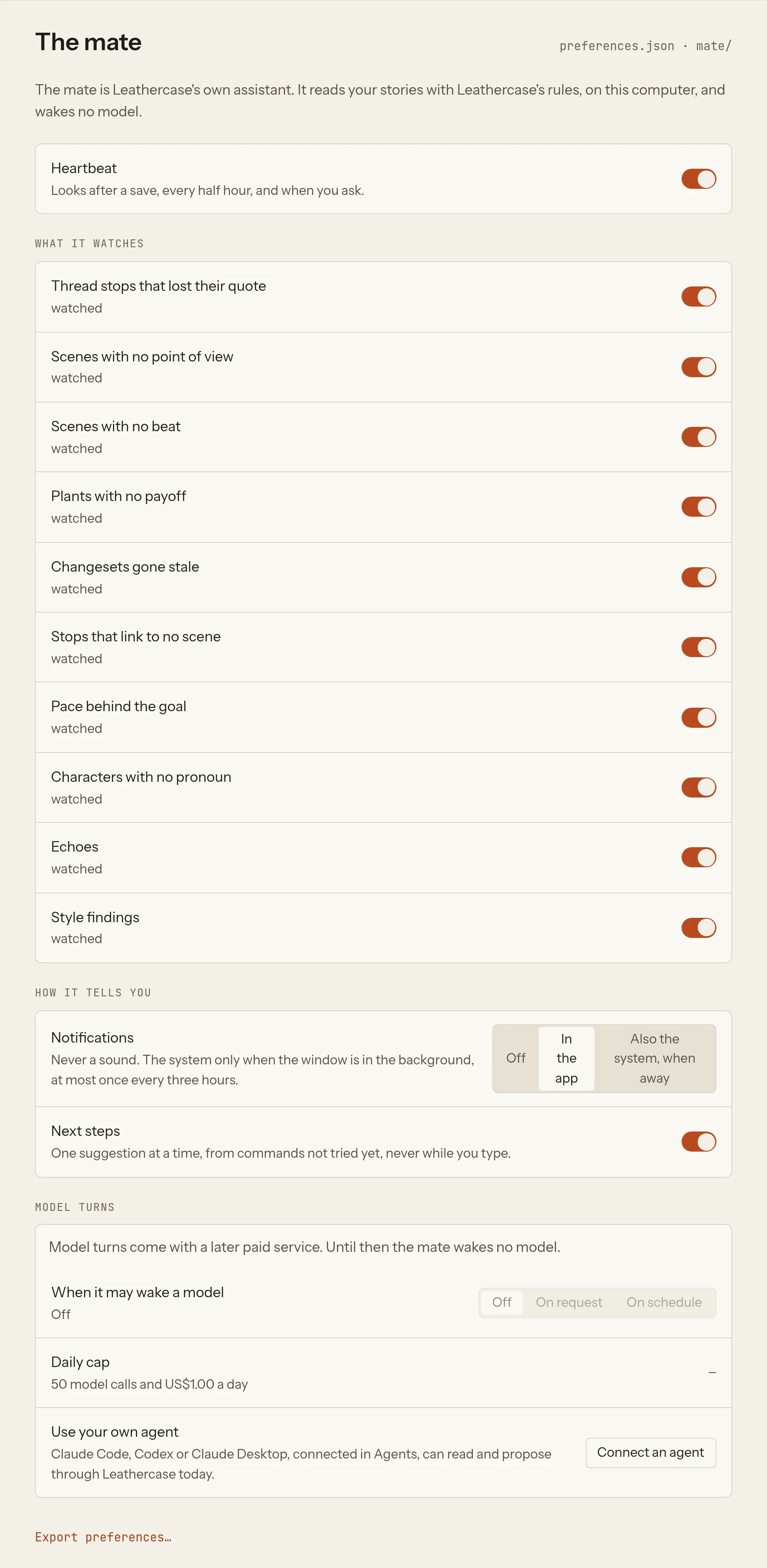
What it watches: a switch per rule, each "watched" or "muted": Thread stops that lost their quote, Scenes with no point of view, Scenes with no beat, Plants with no payoff, Changesets gone stale, Stops that link to no scene, Pace behind the goal, Characters with no pronoun, Echoes, Style findings. All on by default.
How it tells you:
| Field | Default | What it does |
|---|---|---|
| Notifications | In the app | Off, In the app, or Also the system, when away. "Never a sound. The system only when the window is in the background, at most once every three hours." |
| What may reach the system | Changesets gone stale, Pace behind the goal, Thread stops that lost their quote | Shown with Also the system, when away: a switch per rule |
| Quiet hours | 22:00 to 08:00 | Shown with Also the system, when away: From and To, or None. No system notification between these times |
| Next steps | On | One suggestion at a time, from commands not tried yet, never while you type |
Model turns: "Model turns come with a later paid service. Until then the mate wakes no model."
| Field | Default | What it does |
|---|---|---|
| When it may wake a model | Off | Off, On request, On schedule: drawn greyed, and cannot be changed in the free app |
| Daily cap | 50 model calls and $1.00 a day | Shown for reference; not in use |
| Use your own agent | "Claude Code, Codex or Claude Desktop, connected in Agents, can read and propose through Leathercase today." Connect an agent opens Agents › Connect |
Search
"Word search always works. Meaning search finds passages in other words, with a model that runs on this computer." This computer only (preferences.json, and the model in models/).
| Field | What it shows or does |
|---|---|
| Meaning search | Its state: "Not on this computer.", "Downloading: 42%.", "Paused at 42%.", "The download did not finish.", or "On this computer: Xenova/multilingual-e5-small, 135 MB." Buttons: Download, 135 MB (or Resume), Pause while downloading, Cancel while downloading or paused, Remove once it is here |
Before the download, a faint line names the model, its licence (MIT), its size, and "checked before use". On an Intel Mac it says "This computer cannot run it: there is no runtime for Intel Macs. Word search works as always." See The mate › Meaning search.
Agents
The programs on this computer that read your stories through Leathercase: the list of agents, Connect an agent, each agent's Log, Edit grant and Revoke, and Pause all agents. This computer only (agents.json and agents/); the agents' logs live with the stories. The section shows the number of agents connected, and an amber dot when there are refusals you have not seen. Everything is described in Connect an agent.
Hotkeys
"Every command and its key." Rebind or unbind any of them in keybindings.json, which holds your changes only; every default is listed beside it in keybindings.defaults.json. Writes keybindings.json and preferences.json, on this computer only. See Keys and commands.
Anywhere on this computer: the two keys that work when another app is in front, off by default.
| Key | Default | What it does |
|---|---|---|
| Capture to Writer | Ctrl+Shift+N | Opens a small window over any app; what you type lands in the Writer's Ideas |
| Show Leathercase | Ctrl+Shift+S | Brings Leathercase forward from any app |
Turn on global keys (or Turn off global keys) sits on the group's heading. Click a key's field and press the new keys to change it (setting a key also turns the global keys on). A row says "Off." while they are off, and in amber when another app holds the key or the system cannot hold it.
In the app: every command, its id in grey, and its key ("—" for none). Edit keybindings.json opens the file in your text editor; your changes there apply the next time Leathercase starts.
A note at the foot: "The keys that work anywhere are this computer's and live in its preferences.json; the rest are in keybindings.json. ? shows the keys of any view; Ctrl K finds anything."
Updates
"Leathercase goes online for one thing only, to ask which version is newest, and only when you say so. Nothing about you or your writing is sent." This computer only. See Updates and uninstalling.
| Row | Default | What it shows or does |
|---|---|---|
| This version | The copy installed on this computer | |
| Check when Leathercase opens | Off | Off until you turn it on. When a newer version is out, a dot on Settings says so; nothing downloads by itself |
| Newer version | Where this copy stands, with one action (see below) | |
| Uninstall | How to uninstall opens the guide to what uninstalling removes on Windows, macOS and Linux; Back to Settings or Esc returns |
The Newer version row says one of:
| It says | Button |
|---|---|
| "Not checked since Leathercase opened." | Check now |
| "Asking the releases…" | none |
| "This is the newest version. Checked at 14:02 UTC." | Check again |
| "Version 0.25.0 is out. It downloads now and installs when you restart." | Download |
| "Version 0.25.0 is out. This copy cannot replace itself, so its download page opens." | Open download page |
| "Downloading version 0.25.0…" | none |
| "Version 0.25.0 is downloaded. It installs when you restart, or the next time you quit." | Restart now |
| The reason a check failed | Try again |
| "A build run from source does not check." | none |
The command Check for updates opens this section and checks at once. When a newer version is out, a dot also appears beside Settings in the sidebar.
About
What Leathercase is, and which copy you have: the Le and the wordmark, "Carry every story.", a line on what the app does, this copy's version with the same newer-version row as Updates, a link to Every version and its notes (the releases page, in your browser), and the copyright. It writes nothing and goes online only when you press Check now.
About Leathercase opens it from the app menu on macOS, from Help on Windows and Linux, and from the find field anywhere.
Story › Structure and goals
"A story's settings travel with it: its files, its structure and plot columns, its goals, its dialogue marks." The row Structure, goals and checks shows the story's folder and the patterns that pick its files, and Open the story's settings opens its settings page beside the story. Kept in the story's suite/Story.json. See Story settings.
Story › Export
The picked story's export settings, titled "The Lamp at Ferrol · Export": File (PDF, Word, EPUB, Markdown, or Fountain for a script), Paper, Font, Title page, Byline (the story's pen name), Running header, Header keyword, Chapters, Parts, Chapter headings, Scene break, and the word count. The book's own words follow the story's language. Kept in the story's suite/Export.json. See Export.
Settings found elsewhere
A few settings live beside what they change, not on this page:
| Setting | Where |
|---|---|
| The folder your Writer cards go in (the home's author data folder) | The Writer Board's side column, Your cards go in, with Choose… and Use the default; see The Writer Board |
| The folder a story's own suite files go in | The story's settings, Leathercase's files go in; see Story settings |
| A story's language, goals, deadline, plot columns and dialogue marks | The story's settings |
| What a graph tab shows for a story | The Graph's side column, kept in the tab's file |
| Whether the assistant's layer is shown | Ctrl+. on any view; remembered on this computer |